Controls and Settings
Entering numbers, notes, undo, hints and pausing, all on one page.
On this page
Entering numbers
Tap an empty cell, then tap a number on the number pad. On a computer you can also type 1 to 9.
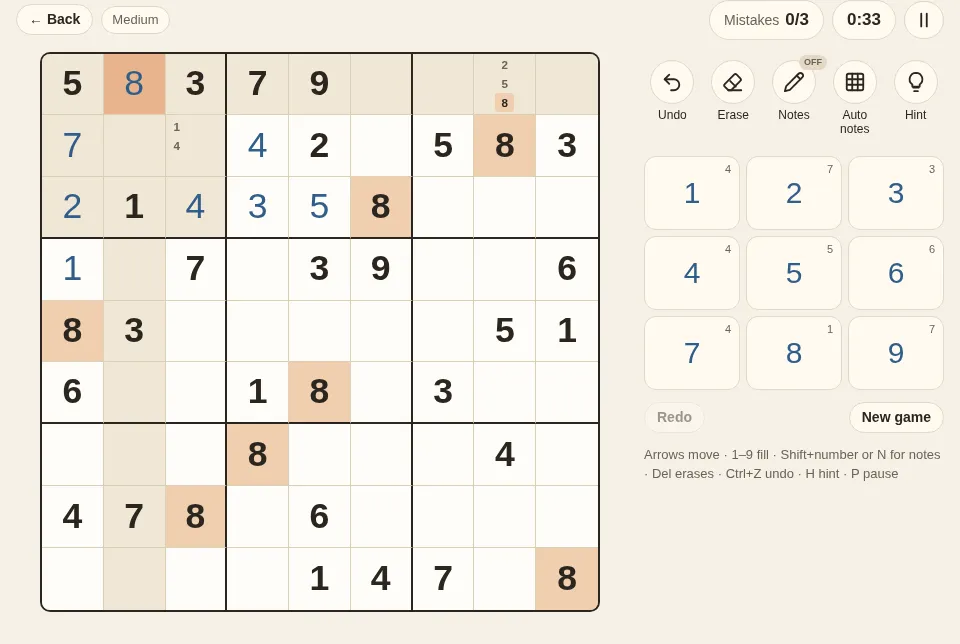
- The row, column and box of the selected cell are lightly shaded, and every matching number on the grid is highlighted, which makes scanning easier.
- Entering the same number in the same cell again erases it.
- The small number on each key shows how many of that number are still to be placed. When all nine are in, the key shows a check mark and fades.
- Given numbers are darker and cannot be changed.
Notes
In harder puzzles you cannot keep every possibility in your head. That is what notes are for: small numbers written in an empty cell to mark what it could still be (also called candidates).
- Press "Notes" in the toolbar to switch to notes mode. Numbers you enter are now notes; entering the same one again removes it.
- On a keyboard, press N to switch notes mode, or hold Shift while typing a number to write a single note without switching.
- When you place a correct number, that number is removed from the notes in the same row, column and box. Turn off "Remove notes automatically" in the settings if you prefer.
- "Auto notes" fills every empty cell with all the numbers still possible on the current grid. It replaces any notes you wrote, and it does not affect your best time.
Every technique from Intermediate techniques onward works by removing notes, so it is worth getting used to them early.
Erase, undo and redo
- "Erase" clears the number in the selected cell; if there is no number, it clears the cell's notes. Keyboard: Delete, Backspace or 0.
- "Undo" takes back the last move: numbers, notes and erasing can all be undone. Keyboard: Ctrl + Z.
- After undoing, "Redo" below the number pad brings the move back. Keyboard: Ctrl + Y or Ctrl + Shift + Z.
Hints
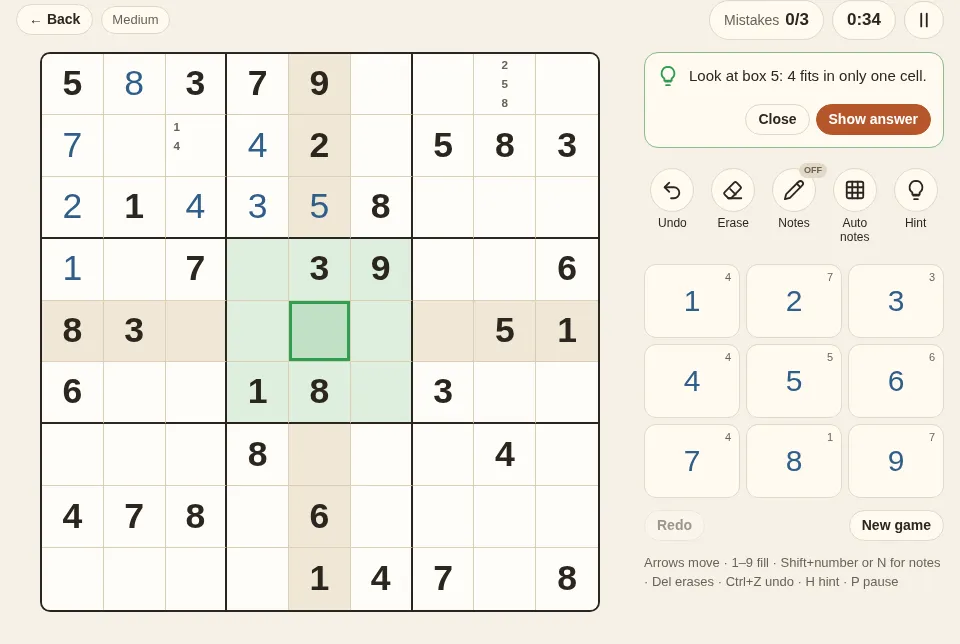
Stuck? Press "Hint" (keyboard H). A hint does not just give you the answer. It works in two stages:
- If any numbers on the grid are wrong, the hint marks them in red first and offers "Erase them". As long as a wrong number stays, every deduction after it goes wrong too.
- If the grid has no mistakes, the hint marks the next cell you can fill and the area to look at, and explains why, for example "Look at box 5: 7 fits in only one cell." When a more advanced technique is needed first to remove candidates, it names that technique too.
To see the answer, press "Show answer" in the hint. You can still finish a game after using hints, but it will not count toward your best time.
Mistake check
The "Mistakes" setting has three modes:
| Mode | Wrong numbers | Mistake count |
|---|---|---|
| Limit 3 (default) | Shown in red | The game ends after 3 mistakes; you can choose a second chance |
| Highlight | Shown in red | No limit |
| Off | Not shown, like on paper | Not counted; you are told if the full grid is wrong |
The separate "Duplicate numbers" setting looks only at the rules, not the solution: it marks two identical numbers in the same row, column or box.
Pausing and saving
- Press the pause button next to the time, or P. The grid is covered and the clock stops. Switching to another tab or locking your phone pauses the game too.
- Every move is saved automatically in this browser. Close the page and come back, and the menu shows "Game in progress"; press "Continue" to pick up where you left off. A restored game starts paused, so the clock waits until you are ready.
Keyboard shortcuts
| Key | Action |
|---|---|
| ↑ ↓ ← → or W A S D | Move the selection |
| 1 – 9 | Enter a number (a note in notes mode) |
| Shift + number | Write one note without switching modes |
| N | Switch notes mode |
| Delete, Backspace, 0 | Erase |
| Ctrl + Z | Undo |
| Ctrl + Y, Ctrl + Shift + Z | Redo |
| H | Hint |
| P | Pause or resume |
On a Mac, ⌘ works in place of Ctrl.
Settings
Press the gear in the top right corner to open the settings:
- Mistakes: see the table above.
- Remove notes automatically: when you place a number, remove it from the notes in the same row, column and box.
- Highlights: matching numbers, the selected row, column and box, and duplicate numbers can each be turned off.
- Show how many of each number are left: the small numbers on the keys.
- Hide the timer while playing: for when you do not want to race the clock. The time is still recorded.
- Theme: follow the system, light or dark.
Settings are saved in this browser and stay the same next time.
Up nextBasic Techniques: Singles →